Visual Studio Code FAQ
Our docs contain a Common questions section as needed for specific topics. We've captured items here that don't fit in the other topics.
If you don't see an answer to your question here, check our previously reported issues on GitHub and our release notes.
Open sourcing AI in VS Code
We've open sourced the GitHub Copilot Chat extension under the MIT license and are bringing relevant components into VS Code core. Read all details in our announcement blog post and first milestone update.
Does this affect my current GitHub Copilot subscription? Is GitHub Copilot free now?
This change does not affect current GitHub Copilot subscriptions. To use GitHub Copilot, you'll continue to need both a GitHub account, and access to a GitHub Copilot subscription.
Individual developers who don't have access to Copilot through an organization or enterprise have access to the GitHub Copilot free plan (restrictions may apply). If that plan doesn't meet your needs, you can sign up for a Copilot paid plan or bring your own model keys.
Will the GitHub Copilot backend services also be open sourced?
The GitHub Copilot services are not affected and will remain closed source.
What is the timeline? When can I provide a contribution to the AI experience in VS Code?
We have completed the first step of this process by open sourcing the GitHub Copilot Chat extension. The source code is available in the microsoft/vscode-copilot-chat repository.
In the coming months, we will bring the relevant components of the Copilot Chat extension into the core VS Code repository. Check our plan item for details and updates about the timeline.
Our goal is to make the experience for contributing to our AI features as simple as contributing to any part of VS Code. As part of this, we want to make it possible to use the Copilot backend services for debugging and testing purposes when contributing. Check the CONTRIBUTING.md file for details on how to contribute.
Why integrate GitHub Copilot into the core VS Code repository?
In the time since GitHub Copilot was first released, it's become clear that AI-powered tools are core to how we write code. From usage telemetry, we can see that more users are actually using AI features in VS Code than some other features like debugging or testing.
Making AI functionality a core part of VS Code is a reaffirmation in our belief that working in the open leads to a better product for our users and fosters a diverse ecosystem of extensions.
I'm an extension author. How am I affected?
We maintain backwards compatibility for stable APIs. You should not expect any impact on your extension. We're continuously evolving and expanding the VS Code extension APIs based on feedback from extension authors. If you need additional APIs to make your extension successful, we would love to hear from you – please file an API request in the microsoft/vscode repo.
I already use other AI coding extensions in VS Code (Cline, Roo Code, ...). How does this affect me?
You can continue to use these extensions in VS Code! We love that the community is building extensions to make the developer experience in VS Code better. To improve the experience for other AI extensions, we're constantly adding APIs like the Language Model API for directly calling language models from an extension, the Tools API for interacting with language model tools and integrating with the built-in or your own agents, or the Shell Execution API for running and interacting with terminal commands (particularly useful for agentic experiences). Going forward, we are planning to add even more APIs to meet the needs of extension authors.
Will this change anything about how you collect data?
No, nothing is changing. By open sourcing GitHub Copilot Chat, we are making it fully transparent how we collect data and enable you to verify this in the source code. Learn more about telemetry in VS Code and the GitHub Copilot Trust Center.
How will the VS Code team prioritize between AI features and non-AI features in future releases?
We believe that AI-powered tools are core to how we write code. We invest in both AI features and improving the core editor experience. This is also reflected in a 50/50% split of the team working on AI versus other features. Many of the non-AI features might not always be as visible to the user, such as performance, security, accessibility, Electron updates, and more.
Will bringing AI features into the core VS Code repository affect the (startup) performance of VS Code?
Performance is our core priority and we are committed to maintaining the performance of VS Code as we integrate AI features. In addition, if you don't enable AI functionality in VS Code, no associated background processes will run that could affect performance.
Can I disable AI functionality in VS Code?
You can disable the built-in AI features in VS Code with the chat.disableAIFeatures setting, similar to how you configure other features in VS Code. This disables and hides features like chat or inline suggestions in VS Code and disables the Copilot extensions. You can configure the setting at the workspace or user level.
Alternatively, use the Learn How to Hide AI Features action from the Chat menu in the title bar to access the setting.
If you have previously disabled the built-in AI features, your choice is respected upon updating to a new version of VS Code.
If I disable AI functionality in VS Code, is my data still sent to Microsoft?
No, if you disable AI functionality in VS Code or if you don't login to your Copilot subscription from VS Code, your data is not sent to the Copilot backend services. Learn more about telemetry in VS Code and the GitHub Copilot Trust Center.
Are the models that VS Code uses in the Copilot extension open source (OSS)?
No. The models used by GitHub Copilot are licensed separately, and that does not change. In fact, most of those models are from third parties such as OpenAI, Anthropic and Google...
What is the difference between Visual Studio Code and Visual Studio IDE?
Visual Studio Code is a streamlined code editor with support for development operations like debugging, task running, and version control. It aims to provide just the tools a developer needs for a quick code-build-debug cycle and leaves more complex workflows to fuller featured IDEs, such as Visual Studio IDE.
Is VS Code free?
Yes, VS Code is free for private or commercial use. See the product license for details.
아직 Copilot 구독이 없다면 Copilot 무료 플랜에 가입하여 Copilot을 무료로 사용할 수 있으며, 월별 완료 횟수 및 채팅 상호 작용 제한이 제공됩니다.
Platform support
Which OSs are supported?
VS Code runs on macOS, Linux, and Windows. See the Requirements documentation for the supported versions. You can find more platform specific details in the Setup overview.
Can I run VS Code on older Windows versions?
Microsoft ended support and is no longer providing security updates for Windows 7, Windows 8, and Windows 8.1. VS Code desktop versions starting with 1.71 (August 2022) no longer run on Windows 7 and starting with 1.80 (June 2023) will no longer run on Windows 8 and 8.1. You will need to upgrade to a newer Windows version to use later versions of VS Code.
VS Code will no longer provide product updates or security fixes on old Windows versions. VS Code version 1.70.3 is the last available release for Windows 7 users and version 1.79 will be the last available release for Windows 8 and 8.1 users. You can learn more about upgrading your Windows version at support.microsoft.com.
Additionally, 32-bit OEM support has been dropped with Windows 10, version 2004. The last stable VS Code version to support Windows 32-bit is 1.83 (September 2023). You will need to update to the 64-bit release.
Can I run VS Code on old macOS versions?
VS Code desktop version starting with 1.105 (September 2025) is deprecating support for macOS Big Sur (version 11.0 and older). Starting with VS Code 1.107 (November 2025), we will stop updating VS Code on macOS Big Sur (version 11.0 and older). You will need to upgrade to a newer macOS version to use later versions of VS Code.
VS Code will no longer provide product updates or security fixes on macOS Big Sur (versions 11.0 and older) and VS Code version 1.106 will be the last available release for macOS Big Sur (11.0 and older). You can learn more about upgrading your macOS version at support.apple.com.
Can I run VS Code on older Linux distributions?
Starting with VS Code release 1.86.1 (January 2024), VS Code desktop is only compatible with Linux distributions based on glibc 2.28 or later, for example, Debian 10, RHEL 8, or Ubuntu 20.04.
If you are unable to upgrade your Linux distribution, the recommended alternative is to use our web client. If you would like to use the desktop version, then you can download the VS Code release 1.85 from here. Depending on your platform, make sure to disable updates to stay on that version. A good recommendation is to set up the installation with Portable Mode.
Can I run a portable version of VS Code?
Yes, VS Code has a Portable Mode that lets you keep settings and data in the same location as your installation, for example, on a USB drive.
Telemetry and crash reporting
How to disable telemetry reporting
VS Code collects usage data and sends it to Microsoft to help improve our products and services. Read our privacy statement and telemetry documentation to learn more.
If you don't want to send usage data to Microsoft, you can set the telemetry.telemetryLevel user setting to off.
From File > Preferences > Settings, search for telemetry, and set the Telemetry: Telemetry Level setting to off. This will silence all telemetry events from VS Code going forward.
Important Notice: VS Code gives you the option to install Microsoft and third party extensions. These extensions may be collecting their own usage data and are not controlled by the
telemetry.telemetryLevelsetting. Consult the specific extension's documentation to learn about its telemetry reporting.
How to disable experiments
VS Code uses experiments to try out new features or progressively roll them out. Our experimentation framework calls out to a Microsoft-owned service and is therefore disabled when telemetry is disabled. However, if you want to disable experiments regardless of your telemetry preferences, you may set the workbench.enableExperiments user setting to false.
From File > Preferences > Settings, search for experiments, and uncheck the Workbench: Enable Experiments setting. This will prevent VS Code from calling out to the service and opt out of any ongoing experiments.
How to disable crash reporting
VS Code collects data about any crashes that occur and sends it to Microsoft to help improve our products and services. Read our privacy statement and telemetry documentation to learn more.
If you don't want to send crash data to Microsoft, you can change the telemetry.telemetryLevel user setting to off.
From File > Preferences > Settings, search for telemetry, and set the Telemetry: Telemetry Level setting to off. This will silence all telemetry events including crash reporting from VS Code. You will need to restart VS Code for the setting change to take effect.
GDPR and VS Code
Now that the General Data Protection Regulation (GDPR) is in effect, we want to take this opportunity to reiterate that we take privacy very seriously. That's both for Microsoft as a company and specifically within the VS Code team.
To support GDPR
- The VS Code product notifies all users that they can opt out of telemetry collection.
- The team actively reviews and classifies all telemetry sent (documented in our OSS codebase).
- There are valid data retention policies in place for any data collected, for example crash dumps.
You can learn more about VS Code's GDPR compliance in the telemetry documentation.
What online services does VS Code use?
Beyond crash reporting and telemetry, VS Code uses online services for various other purposes such as downloading product updates, finding, installing, and updating extensions, or providing Natural Language Search within the Settings editor. You can learn more in Managing online services.
You can choose to turn on/off features that use these services. From File > Preferences > Settings, and type the tag @tag:usesOnlineServices. This will display all settings that control the usage of online services and you can individually switch them on or off.
Licensing
Location
You can find the VS Code licenses, third party notices and Chromium Open Source credit list under your VS Code installation location resources\app folder. VS Code's ThirdPartyNotices.txt, Chromium's Credits_*.html, and VS Code's English language LICENSE.txt are available under resources\app. Localized versions of LICENSE.txt by language ID are under resources\app\licenses.
Why does Visual Studio Code have a different license than the vscode GitHub repository?
To learn why Visual Studio Code, the product, has a different license than the open-source vscode GitHub repository, see issue #60 for a detailed explanation.
What is the difference between the vscode repository and the Microsoft Visual Studio Code distribution?
The github.com/microsoft/vscode repository (Code - OSS) is where we develop the Visual Studio Code product. Not only do we write code and work on issues there, we also publish our roadmap and monthly iteration and endgame plans. The source code is available to everyone under a standard MIT license.
Visual Studio Code is a distribution of the Code - OSS repository with Microsoft specific customizations (including source code), released under a traditional Microsoft product license.
See the Visual Studio Code and 'Code - OSS' Differences article for more details.
What does "Built on Open Source" mean?
Microsoft Visual Studio Code is a Microsoft licensed distribution of 'Code - OSS' that includes Microsoft proprietary assets (such as icons) and features (Visual Studio Marketplace integration, small aspects of enabling Remote Development). While these additions make up a very small percentage of the overall distribution code base, it is more accurate to say that Visual Studio Code is "built" on open source, rather than "is" open source, because of these differences. More information on what each distribution includes can be found in the Visual Studio Code and 'Code - OSS' Differences article.
확장
Are all VS Code extensions open source?
Extension authors are free to choose a license that fits their business needs. While many extension authors have opted to release their source code under an open-source license, some extensions like Wallaby.js, Google Cloud Code, and the VS Code Remote Development extensions use proprietary licenses.
At Microsoft, we have a mix of open and closed source extensions. Reliance on existing proprietary source code or libraries, source code that crosses into Microsoft licensed tools or services (e.g., the C# DevKit extension uses the Visual Studio subscription license model, see License), and business model differences across the entirety of Microsoft may result in extensions choosing a proprietary license. You can find a list of Microsoft contributed Visual Studio Code extensions and their source code licenses in the Microsoft Extension Licenses article.
How do I find the license for an extension?
Most extensions will have a link to their license on the Marketplace page (their "Read Me" document), found on the right column under Resources. If you don't find a link, you may find the license in the extension's repository if it is public, or you can contact the extension author through the Q & A section of the Marketplace.
Can I use a Microsoft extension outside of VS Code?
No. While the source code for an extension from Microsoft may be open source, we do not license extensions from Microsoft or its affiliates that are published to and acquired from the Visual Studio Marketplace for use outside of the Visual Studio family of products: Microsoft Visual Studio, Visual Studio Code, GitHub Codespaces, Azure DevOps, Azure DevOps Server, and successor products and services offered by us and Microsoft affiliates, such as GitHub, Inc. We build, test, deploy, and support these extensions and services only in the Visual Studio family of products, to ensure they meet our security and quality standards. We do not do this for extensions elsewhere, including those built on a fork of the Code - OSS Repository. Please see Conditions: Use Rights for Marketplace/NuGet Offerings in the Visual Studio Marketplace Terms of Service for more information.
I can't access the Visual Studio Marketplace from product << fill in the blank >>, why not?
We provide the Visual Studio Marketplace for use only by the Visual Studio family of products: Microsoft Visual Studio, Visual Studio Code, GitHub Codespaces, Azure DevOps, Azure DevOps Server, and successor products and services offered by us and Microsoft affiliates, such as GitHub, Inc. Therefore, alternative products including those built on a fork of the Code - OSS Repository, are not permitted to access the Visual Studio Marketplace. We do this to protect the security and quality of the ecosystem, including the following measures
-
Extensions run in the context and with the permissions of the product, and they might contain executable code. The Marketplace vets every extension for security and to prevent them from performing malicious activity. When you install an extension with a product in the Visual Studio family, you know that it has been vetted to run in that context.
-
When a malicious extension is reported and verified, or a vulnerability is found in an extension dependency, the extension is removed from the Marketplace, added to a block list, and automatically uninstalled by VS Code.
-
Microsoft spends considerable resources in running, maintaining, and securing this global online service. Products in the Visual Studio family are designed to access the Marketplace in a secure and reliable manner, so that the Marketplace is available when you need it.
-
Extensions might integrate deeply with the product. The Marketplace ensures that we maintain API compatibility and that extensions use the product's extensions APIs correctly. This helps ensure that extensions you install work correctly across version updates.
See #31168 for additional details on this topic.
Why should I install extensions from the Visual Studio Marketplace?
Installing extensions from the Visual Studio Marketplace has many advantages over installing them from other sources.
-
The Visual Studio Marketplace employs several mechanisms to protect you from installing malicious extensions, including malware scanning, dynamic detection, publisher verification, and more. When you install extensions from a different source, there is no guarantee that the extension is safe to run in your context.
-
When a malicious extension is reported and verified, or a vulnerability is found in an extension dependency, the extension is removed from the Marketplace, added to a block list, and automatically uninstalled by VS Code.
-
The Marketplace enables you to easily find, install, and update extensions. When an update is available, for example because of a security fix, VS Code automatically installs the updated version.
-
Extensions might integrate deeply with the product. The Marketplace ensures that we maintain API compatibility and that extensions use the product's extensions APIs correctly. This helps ensure that extensions you install work correctly across version updates.
Report an issue with a VS Code extension
For bugs, feature requests or to contact an extension author, you should use the links available in the Visual Studio Code Marketplace or use Help: Report Issue from the Command Palette. However, if there is an issue where an extension does not follow our code of conduct, for example it includes profanity, pornography or presents a risk to the user, then we have an email alias to report the issue. Once the mail is received, our Marketplace team will look into an appropriate course of action, up to and including unpublishing the extension.
VS Code versions
How do I find my current VS Code version?
You can find the VS Code version information in the About dialog box.
On macOS, go to Code > About Visual Studio Code.
On Windows and Linux, go to Help > About.
The VS Code version is the first Version number listed and has the version format 'major.minor.release', for example '1.100.0'.
Previous release versions
You can find links to some release downloads at the top of a version's release notes
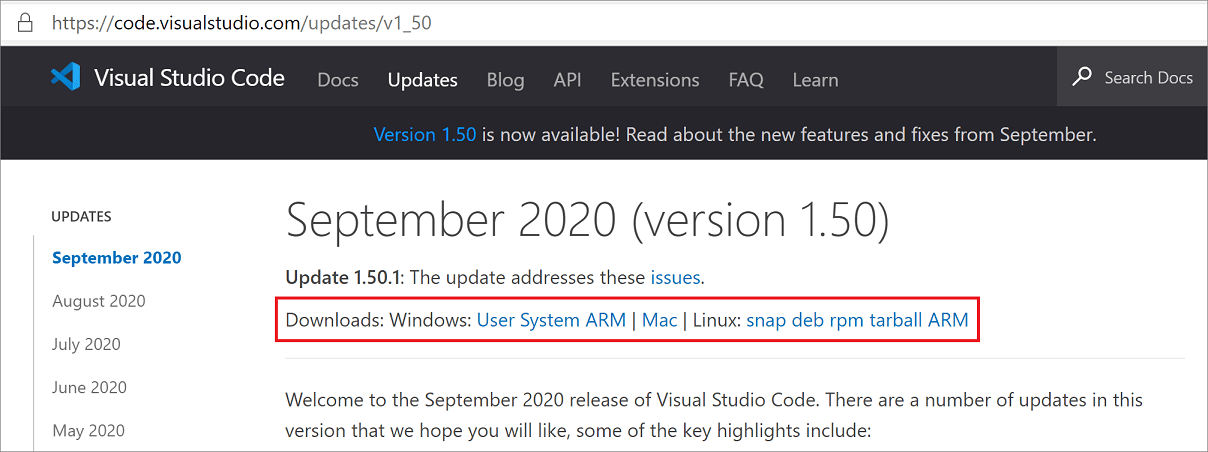
If you need a type of installation not listed there, you can manually download via the following URLs
| Download type | URL |
|---|---|
| Windows x64 System installer | https://update.code.visualstudio.com/{version}/win32-x64/stable |
| Windows x64 User installer | https://update.code.visualstudio.com/{version}/win32-x64-user/stable |
| Windows x64 zip | https://update.code.visualstudio.com/{version}/win32-x64-archive/stable |
| Windows x64 CLI | https://update.code.visualstudio.com/{version}/cli-win32-x64/stable |
| Windows Arm64 System installer | https://update.code.visualstudio.com/{version}/win32-arm64/stable |
| Windows Arm64 User installer | https://update.code.visualstudio.com/{version}/win32-arm64-user/stable |
| Windows Arm64 zip | https://update.code.visualstudio.com/{version}/win32-arm64-archive/stable |
| Windows Arm64 CLI | https://update.code.visualstudio.com/{version}/cli-win32-arm64/stable |
| macOS Universal | https://update.code.visualstudio.com/{version}/darwin-universal/stable |
| macOS Intel chip | https://update.code.visualstudio.com/{version}/darwin/stable |
| macOS Intel chip CLI | https://update.code.visualstudio.com/{version}/cli-darwin-x64/stable |
| macOS Apple silicon | https://update.code.visualstudio.com/{version}/darwin-arm64/stable |
| macOS Apple silicon CLI | https://update.code.visualstudio.com/{version}/cli-darwin-arm64/stable |
| Linux x64 | https://update.code.visualstudio.com/{version}/linux-x64/stable |
| Linux x64 debian | https://update.code.visualstudio.com/{version}/linux-deb-x64/stable |
| Linux x64 rpm | https://update.code.visualstudio.com/{version}/linux-rpm-x64/stable |
| Linux x64 snap | https://update.code.visualstudio.com/{version}/linux-snap-x64/stable |
| Linux x64 CLI | https://update.code.visualstudio.com/{version}/cli-linux-x64/stable |
| Linux Arm32 | https://update.code.visualstudio.com/{version}/linux-armhf/stable |
| Linux Arm32 debian | https://update.code.visualstudio.com/{version}/linux-deb-armhf/stable |
| Linux Arm32 rpm | https://update.code.visualstudio.com/{version}/linux-rpm-armhf/stable |
| Linux Arm32 CLI | https://update.code.visualstudio.com/{version}/cli-linux-armhf/stable |
| Linux Arm64 | https://update.code.visualstudio.com/{version}/linux-arm64/stable |
| Linux Arm64 debian | https://update.code.visualstudio.com/{version}/linux-deb-arm64/stable |
| Linux Arm64 rpm | https://update.code.visualstudio.com/{version}/linux-rpm-arm64/stable |
| Linux Arm64 CLI | https://update.code.visualstudio.com/{version}/cli-linux-arm64/stable |
Substitute the specific release you want in the {version} placeholder. For example, to download the Linux Arm64 debian version for 1.83.1, you would use
https://update.code.visualstudio.com/1.83.1/linux-deb-arm64/stable
You can use the version string latest, if you'd like to always download the latest VS Code stable version.
Windows 32-bit versions
Windows x86 32-bit versions are no longer actively supported after release 1.83 and could pose a security risk.
| Download type | URL |
|---|---|
| Windows x86 System installer | https://update.code.visualstudio.com/{version}/win32/stable |
| Windows x86 User installer | https://update.code.visualstudio.com/{version}/win32-user/stable |
| Windows x86 zip | https://update.code.visualstudio.com/{version}/win32-archive/stable |
| Windows x86 CLI | https://update.code.visualstudio.com/{version}/cli-win32-ia32/stable |
Prerelease versions
Want an early peek at new VS Code features? You can try prerelease versions of VS Code by installing the "Insiders" build. The Insiders build installs side by side to your stable VS Code install and has isolated settings, configurations, and extensions. The Insiders build is updated nightly so you'll get the latest bug fixes and feature updates from the day before.
To install the Insiders build, go to the Insiders download page.
How do I opt out of VS Code auto-updates?
By default, VS Code is set up to auto-update for macOS and Windows users when we release new updates. If you do not want to get automatic updates, you can set the Update: Mode setting from default to none.
To modify the update mode, go to File > Preferences > Settings, search for update mode and change the setting to none.
If you use the JSON editor for your settings, add the following line
"update.mode": "none"
You can install a previous release of VS Code by uninstalling your current version and then installing the download provided at the top of a specific release notes page.
Note: On Linux: If the VS Code repository was installed correctly then your system package manager should handle auto-updating in the same way as other packages on the system. See Installing VS Code on Linux.
Opt out of extension updates
By default, VS Code will also auto-update extensions as new versions become available. If you do not want extensions to automatically update, you can clear the Extensions: Auto Update check box in the Settings editor (⌘, (Windows, Linux Ctrl+,)).
If you use the JSON editor to modify your settings, add the following line
"extensions.autoUpdate": false
Where can I find the Visual Studio Code icons?
Are there guidelines for using the icons and names?
You can download the official Visual Studio Code icons and read the usage guidelines at Icons and names usage guidelines.
What is a VS Code "workspace"?
A VS Code "workspace" is usually just your project root folder. VS Code uses the "workspace" concept in order to scope project configurations such as project-specific settings as well as config files for debugging and tasks. Workspace files are stored at the project root in a .vscode folder. You can also have more than one root folder in a VS Code workspace through a feature called Multi-root workspaces.
You can learn more in the What is a VS Code "workspace"? article.
Problems and issues
Installation appears to be corrupt [Unsupported]
VS Code는 디스크의 설치가 변경되었는지 감지하기 위해 백그라운드 검사를 수행합니다. 변경된 경우 제목 표시줄에 [지원되지 않음] 텍스트가 표시됩니다. 이는 일부 확장 프로그램이 VS Code 제품을 영구적이지는 않지만(다음 업데이트까지) 반쯤 영구적인 방식으로 직접 수정(패치)하여 재현하기 어려운 문제를 야기할 수 있기 때문입니다. VS Code 패치를 차단하려는 것이 아니라, VS Code를 패치하는 것은 지원되지 않는 버전을 실행하고 있음을 의미한다는 점을 인지시키고자 합니다. VS Code를 다시 설치하면 수정된 파일을 교체하고 경고 메시지를 제거할 수 있습니다.
VS Code 파일이 바이러스 백신 소프트웨어에 의해 실수로 격리되거나 제거된 경우에도 [지원되지 않음] 메시지가 표시될 수 있습니다(예는 이슈 #94858 참조). 바이러스 백신 소프트웨어 설정을 확인하고 VS Code를 다시 설치하여 누락된 파일을 복구하십시오.
셸 환경을 확인하지 못했습니다
VS Code가 터미널(예: code .)에서 시작될 때, .bashrc 또는 .zshrc 파일에 정의된 환경 설정에 액세스할 수 있습니다. 이는 작업 또는 디버그 대상과 같은 기능도 해당 설정에 액세스할 수 있음을 의미합니다.
하지만 플랫폼의 사용자 인터페이스(예: macOS Dock의 VS Code 아이콘)에서 시작할 때는 일반적으로 셸 컨텍스트에서 실행되지 않으며 해당 환경 설정에 액세스할 수 없습니다. 즉, VS Code를 시작하는 방법에 따라 동일한 환경을 사용하지 못할 수 있습니다.
이 문제를 해결하기 위해 UI 제스처를 통해 시작될 때 VS Code는 .bashrc, .zshrc 또는 PowerShell 프로필 파일에 정의된 셸 환경을 실행(또는 "확인")하기 위한 작은 프로세스를 시작합니다. 구성 가능한 시간 초과(application.shellEnvironmentResolutionTimeout, 기본값 10초) 후에도 셸 환경이 확인되지 않거나 다른 이유로 확인에 실패하면 VS Code는 "확인" 프로세스를 중단하고 셸의 환경 설정 없이 시작하며 다음과 같은 오류가 표시됩니다.
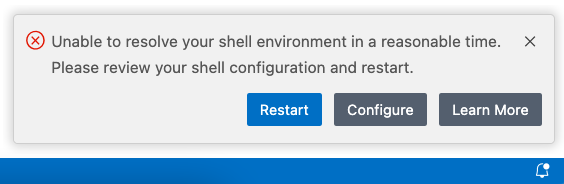
오류 메시지가 셸 환경 확인에 너무 오래 걸렸다고 표시되는 경우, 아래 단계를 통해 느린 원인을 조사할 수 있습니다. application.shellEnvironmentResolutionTimeout 설정을 구성하여 시간 초과를 늘릴 수도 있습니다. 하지만 이 값을 늘리면 확장 프로그램과 같이 VS Code의 일부 기능을 사용하기 위해 더 오래 기다려야 한다는 점을 명심하십시오.
다른 오류가 발생하면 도움을 받기 위해 이슈를 생성해 주십시오.
셸 초기화 느림 조사
아래에 설명된 프로세스는 셸 초기화의 어떤 부분이 가장 많은 시간을 차지하는지 파악하는 데 도움이 될 수 있습니다.
- 셸 시작 파일(예: VS Code에서 Quick Open(⌘P (Windows, Linux Ctrl+P))에서
~/.bashrc또는~/.zshrc입력)을 엽니다. - 잠재적으로 시간이 오래 걸리는 작업(예:
nvm발견 시)을 선택적으로 주석 처리합니다. - 저장하고 VS Code를 완전히 다시 시작합니다.
- 오류가 사라질 때까지 작업을 계속 주석 처리합니다.
참고:
nvm은 강력하고 유용한 Node.js 패키지 관리자이지만 셸 초기화 중에 실행되는 경우 셸 시작 시간을 느리게 할 수 있습니다. asdf와 같은 패키지 관리자 대안을 고려하거나 인터넷에서nvm성능 제안을 검색해 보는 것이 좋습니다.
터미널에서 VS Code 시작
셸 환경 수정이 실용적이지 않다면, 완전히 초기화된 터미널에서 직접 VS Code를 시작하여 VS Code의 셸 환경 확인 단계를 건너뛸 수 있습니다.
- 열린 터미널에서
code를 입력하면 마지막 작업 영역으로 VS Code가 시작됩니다. code .를 입력하면 현재 폴더를 열도록 VS Code가 시작됩니다.
VS Code가 비어 있나요?
Visual Studio Code에서 사용하는 Electron 셸은 일부 GPU(그래픽 처리 장치) 하드웨어 가속에 문제가 있습니다. VS Code가 빈(비어 있는) 메인 창을 표시하는 경우, Electron --disable-gpu 명령줄 스위치를 추가하여 VS Code를 시작할 때 GPU 가속을 비활성화해 보세요.
code --disable-gpu
업데이트 후 이런 현상이 발생했다면 GPUCache 디렉토리를 삭제하면 문제가 해결될 수 있습니다.
rm -r ~/.config/Code/GPUCache
폴더를 연 직후 VS Code가 응답하지 않습니다
폴더를 열면 VS Code는 추가 도구를 제공하기 위해 일반적인 프로젝트 파일을 검색합니다(예: 상태 표시줄의 솔루션 선택기). 파일이 많은 폴더를 열면 검색에 많은 시간과 CPU 리소스가 소요될 수 있으며, 이 동안 VS Code 응답이 느려질 수 있습니다. 향후 이 부분을 개선할 예정이지만, 현재로서는 files.exclude 설정을 통해 탐색기에서 폴더를 제외하면 프로젝트 파일 검색에서 제외됩니다.
    "files.exclude": {
        "**/largeFolder": true
    }
기술 지원 채널
Stack Overflow에서 질문하고 답변을 검색할 수 있으며, GitHub 저장소에 직접 이슈 및 기능 요청을 입력할 수 있습니다.
전문 지원 엔지니어에게 문의하려면 Microsoft 지원팀에 티켓을 열 수 있습니다.